
There’s one thing to a film or TV review and that’s what you think. Perhaps you’re dissecting the end of a season, putting together a list of your favorite movies by a director, or commenting on a trailer. People go to YOU for your opinions. They also are watching you while you’re talking, and a grainy soft picture is not as easy as it should be.
Enhancement is an assisting position. It can enhance existing, usable clips, but will not make a weak clip stronger or a poor set up better. Some tips on how to record, look at, improve and review a talking-head clip.
Consider it doing the equivalent of cleaning a window. You see through it better, but the view hasn’t changed.
Build a usable commentary recording
The studio is not required. Face a window, or place a lamp slightly to one side of the camera so that your face is lit. Place phone or webcam at eye level and make sure it doesn’t move. Don’t fill the space above the head and make the background tidy, don’t have a pile of laundry as the second star of the shot. It doesn’t have to be a bookshelf, it can be just a plain wall.
Aural is as important as pictorial. Although this article is focused on the image, a clip with a clear voice will be longer-watched, so test this as well.
Choose a quiet room, and turn off the air conditioners. Record a short test and play it back with sound on to listen for unwanted noise. Does your face look evenly lit or do you notice shadows or dark spots? Is there any distraction behind you to draw attention away?
When reading from a script, have it out of the way but close by – don’t keep looking down.
Demonstrate by making a new video of yourself. There is no need to use clips or screenshots from a TV show to enhance – and there is no copyright involved.
Identify the visual problems in the source clip
Play clip at full size and look for 3 things. Softness manifests itself with fuzzy hair, hair edges and texture. Low-light noise resembles grain, and is typically found on walls and in shadows. The entire image is compressed, causing blocky patches or smeared details when moving.
Test it on the device that the audience is likely to be using. The softness of a laptop is concealed when screened by a phone.
Look to see how the picture will affect your face in the middle of a sentence as this is what you will be seen most by viewers.
Picture and sound are two different types of problems. The improvement of the video will not aid your speech, reduce echo or eliminate background noise. When you have a problem with the sound coming out of the microphone, either reposition it or use an audio tool. If it’s dark or out of focus or if you have half your face out of frame, rearrange your position or set up and take another shot. That’s not enough for processing the file.
Improve the creator’s footage with Vmake
Open Vmake, go to the Video Enhancer and upload your talking-head clip. Choose one of the enhancement options in the interface and start processing. When it finishes, look at the result before you download it.
The point is to improve video quality on a recording you already made. Watch your face, your hair and the background.
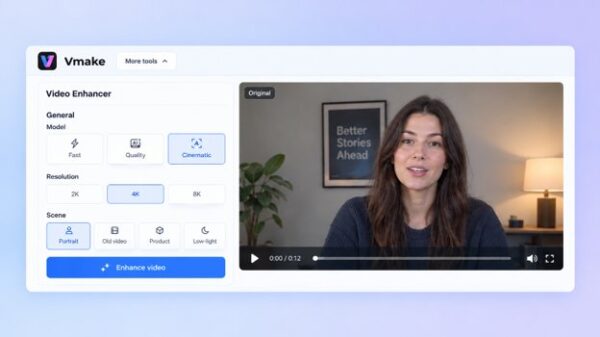
Figure 1: The original commentary clip in the Vmake interface.
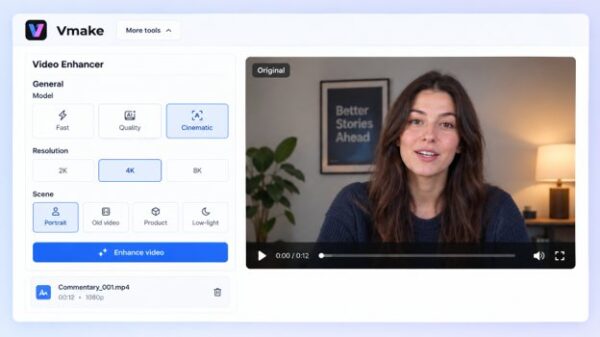
Figure 2: The processed result for the same clip.
Test a fifteen second test length first to ensure that it does not adversely affect your face or the room and then proceed with the full recording. Describe what you saw, but don’t embellish it. The clips on a phone from a bright room might be different from the webcam clip from a dark room, so don’t assume your test applies to all clips.
Choose an area in which you are moving and conversing rather than a dead time. It is the most honest test because that’s where it is the hardest to process.
Preserve natural faces and the intended look
Stop at the same frame for the original and the result and compare their skin, hair, clothes and background. Skin should still retain a skin appearance. Hair needs to be in its natural form and a poster behind you should be the same as the original.
Next, view both moving. Issues may only occur in playback, and may manifest as flickering, shimmering edges or a slightly waxy face. Wait for and watch for anything that is moving, such as hands or a wavering light. If you find artifacts, back up to the original setting or try another setting.
Select a version that is natural and adds to your personality – not one that is the highest resolution. That clip is being seen by viewers, and when it resembles someone else, they will see it, but not get your message.
If in doubt, bring both to the attention of a friend and ask him which looks more natural. Generally, the one they call more natural is the better choice.
Prepare the commentary for viewers
Do the remaining tasks in a separate editor. Make sure to shorten the points so they’re only once per point, and keep the introduction short and concise: tell the viewer what you’re reviewing in the first few seconds, so they know whether or not the video interests them. Provide captions and proofread them – particularly film titles, character names and quotes. Consider the shape you’ll be publishing; if you are doing a long review, it might be a different shape from if you’re doing a short clip.
Make sure that any references are correct, and avoid downloading copyright material to use as test scenes. Adding to a clip does not mean that you are allowed to use the footage you did not acquire.
Many of the commentary tracks are marked as “borrowing too much footage”. You have your own face and your own words and these are your safest.
Conclusion
Clear shots add to your opinion, and people watch for your opinion. Make sure you capture it in a sunny position, check the clip, improve it if necessary and then check it against the original before posting it. Start with one short commentary recording, maybe a two-minute take on a film you watched this week, and see whether the processed version looks better and still looks like you.